How to Set Up a Live Photo Stream at Your Venue
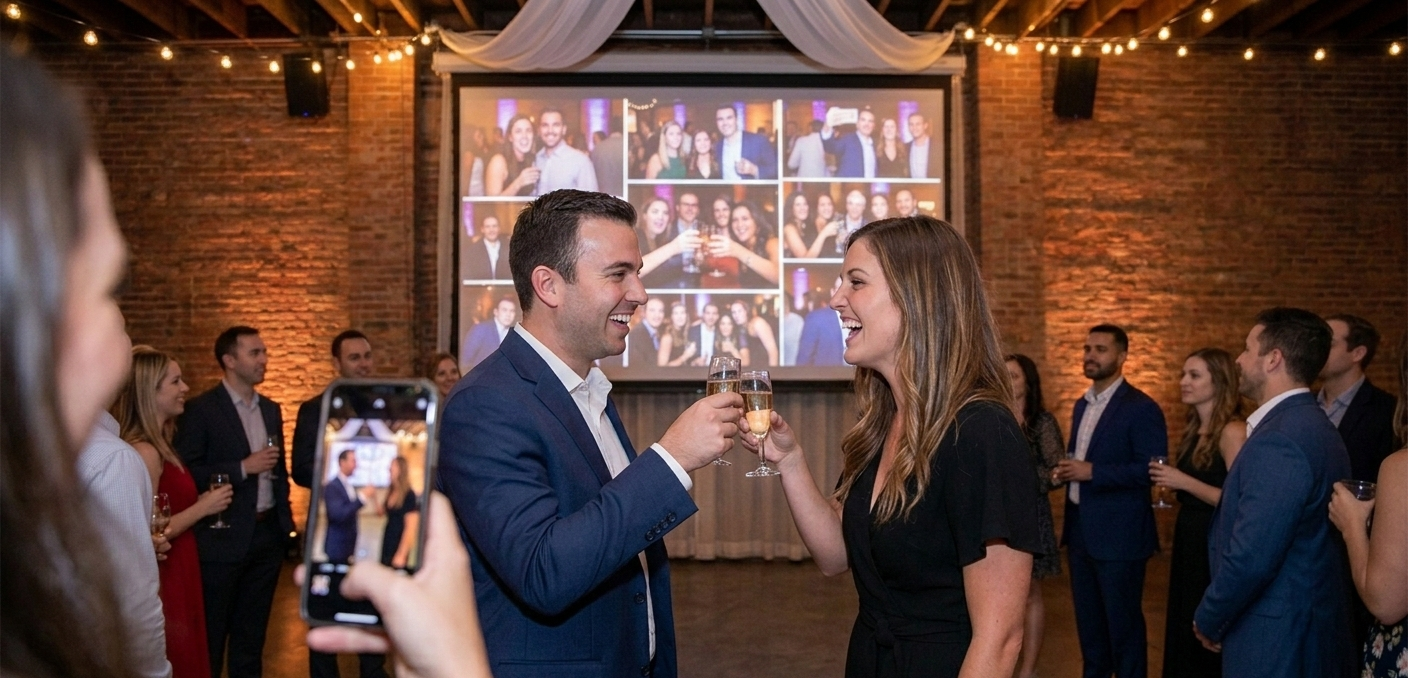
You want guests capturing candid moments while also seeing their photos appear live on a big screen—the moment that makes everyone excited to participate. But most live photo solutions are complicated: special equipment, app downloads, or hiring a tech person on-site.
It doesn't have to be that complicated.
Here's how to set up a TacBoard live display in 15 minutes. No app downloads for guests. No complicated hardware. Just a laptop, an internet connection, and guests texting photos to your event number (555-555-5555). Simple.
Why A Live Display Actually Matters
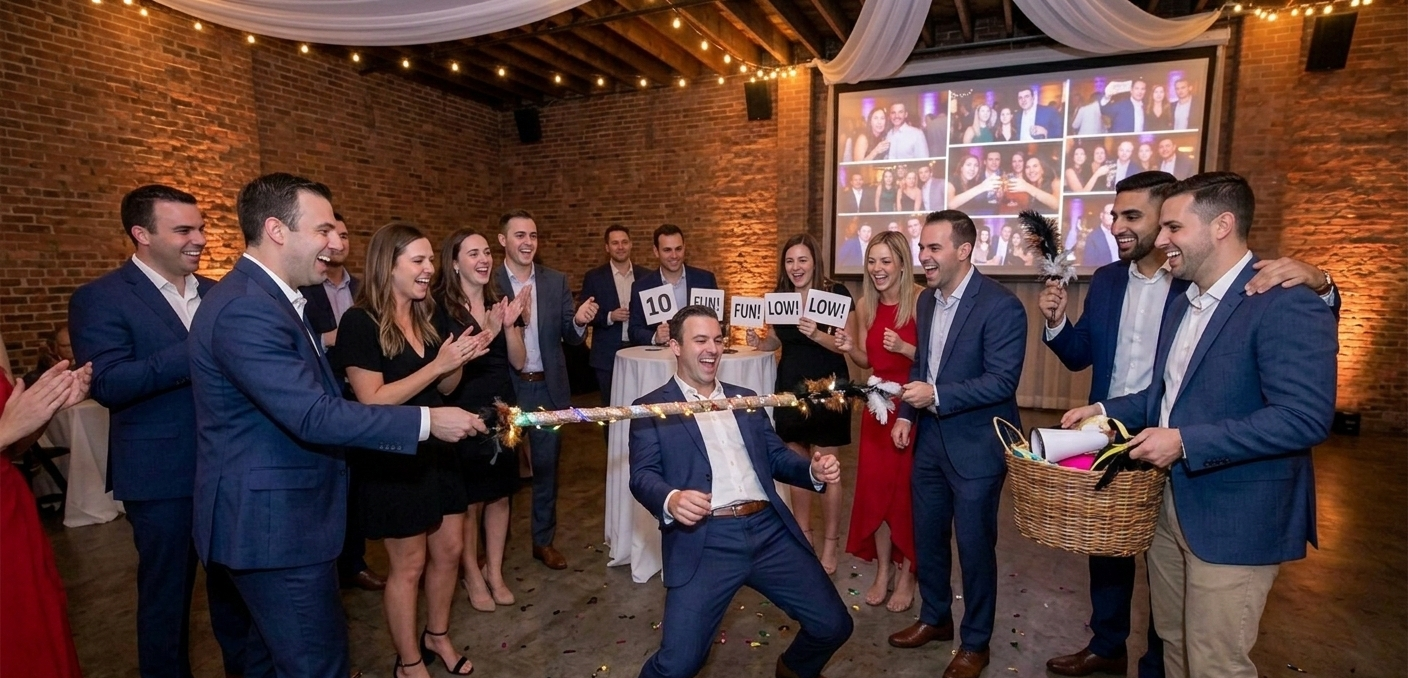
A live display creates immediate feedback. Guests see their photos appear on screen within seconds of texting. That immediate gratification changes everything.
Here's what happens: One guest sees their photo pop up, gets excited, and suddenly everyone else wants to participate. We've seen participation jump from 70% to 95% just by turning on a live display. People engage with things they can see working in real-time. It becomes part of your party—"Did you see your photo yet?" becomes a conversation starter.
It also removes uncertainty. Guests don't wonder if their photo went through—they see it appear. That removes the last bit of friction to participation.
What You Actually Need
The Equipment (You Probably Have Most Of This)
- A laptop or tablet (Mac, Windows, or iPad—nothing fancy)
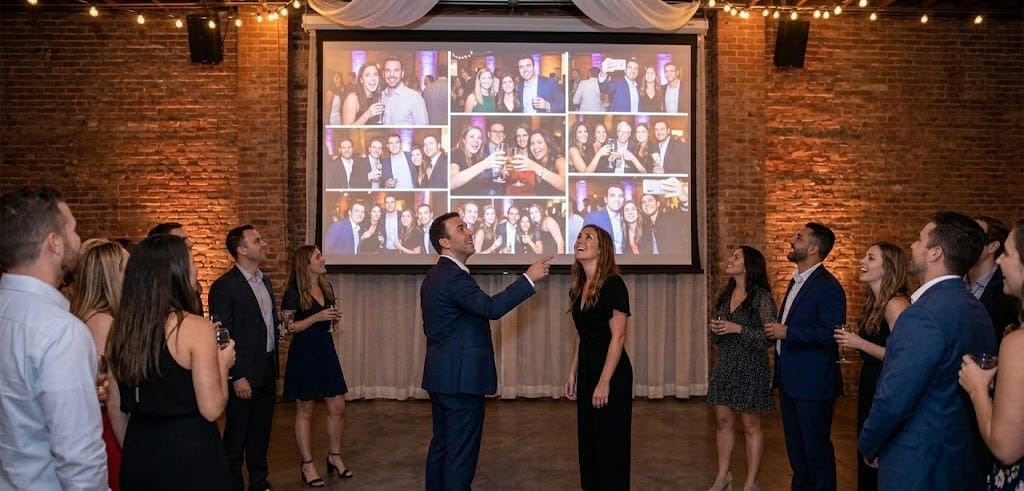
- A display screen or TV at your venue (any size works)
- WiFi or mobile hotspot at your venue
- One HDMI cable to connect laptop to display
- One power outlet
That's it. No special equipment. No proprietary hardware. Just standard stuff. Unlike traditional photo booths, you don't need an iPad or complex setup.
Setup (15 Minutes Total)
Before your event (24 hours prior):
- Log into TacBoard and create your event. You'll get an event number (555-555-5555)
- Choose your display layout: slideshow (full-screen), grid (multiple photos), or waterfall (cascading)
- Create simple signage displaying your event number with "TEXT YOUR PHOTO TO: 555-555-5555"
Day of event (30 minutes before guests arrive):
- Connect your laptop to the venue display with HDMI cable
- Connect to WiFi (or use mobile hotspot if venue WiFi is unreliable)
- Log into TacBoard and click "Start Live Display"
- Verify it looks good from across the room
- In the first 5 minutes of your event, announce: "See that screen? Text any photo to 555-555-5555. No app. No account. Just text."
That's genuinely it. The display runs itself for the rest of the night.
Setup Checklist
- Create TacBoard event 24 hours before
- Get your event number and assign event details
- Choose display layout (slideshow, grid, or waterfall)
- Create and print signage with event number
- Test venue WiFi day before (get password in advance)
- Identify where display will be (high visibility)
- Bring laptop and HDMI cable day of
- Arrive 30 minutes early to set up
- Connect laptop to display and test internet
- Verify display is readable from across room
- Announce event number to guests in first 5 minutes
Key Technical Specs
| Spec | Requirement |
|---|---|
| Internet Speed | Minimum 3 Mbps. Standard venue WiFi works fine |
| Display Resolution | 1080p or higher. Photos scale to any size |
| Device | Windows, Mac, or iPad all work |
| Browser | Chrome, Firefox, Safari, or Edge |
| Photo Update Speed | New photos appear within 5-10 seconds of texting |
Common Issues (And Quick Fixes)
WiFi drops: Disconnect and reconnect. If venue WiFi is unreliable, use your phone as a mobile hotspot—usually more stable.Laptop goes to sleep: Before the event, change sleep settings to "Never" (System Preferences on Mac, Settings on Windows).No photos appearing: Verify the event number is correct on your signage. Ask one guest to send a test photo. Check internet connection.Photos sideways: This is rare. Most phones auto-rotate correctly. Not a deal-breaker—guests understand.
Pro Tips For Maximum Engagement
Display Placement: Position it where it's visible but not distracting—a side wall, elevated position, or above the dance floor work great.
Announce Twice: Tell guests at the beginning, then mention it again during toasts: "If you've texted a photo, it might show up any second!" This reminds people and creates anticipation.
Keep It Running All Night: Don't turn off the display at a set time. People take photos at different moments throughout the event.
Real Example: Jordan and Alex's reception had a slideshow display showing 180 photos live. Their photographer later said the guest angles and candid moments were incredible. One photo—their youngest sister capturing their first moment alone after the ceremony—became one of their favorites. It wouldn't exist without the live display encouraging participation.
The 30-Day Window Still Applies
The live display is just the in-the-moment engagement. After the event, guests can keep texting photos for 30 days. That guest traveling? They can contribute later. The honeymoon shot from your wedding day outfit? Send it in. Your permanent gallery keeps growing.
After The Event
Turn off the display when you're ready (usually when everyone leaves). Your photos stay in your permanent private gallery forever. Download them, share them, relive them anytime. Your guests can add photos for the next 30 days, so keep your account active.
That's Actually It
Setting up a live photo display sounds fancy. It's genuinely simple:
- Create your event in TacBoard (3 minutes)
- Connect laptop to display (5 minutes)
- Tell guests the number (1 minute)
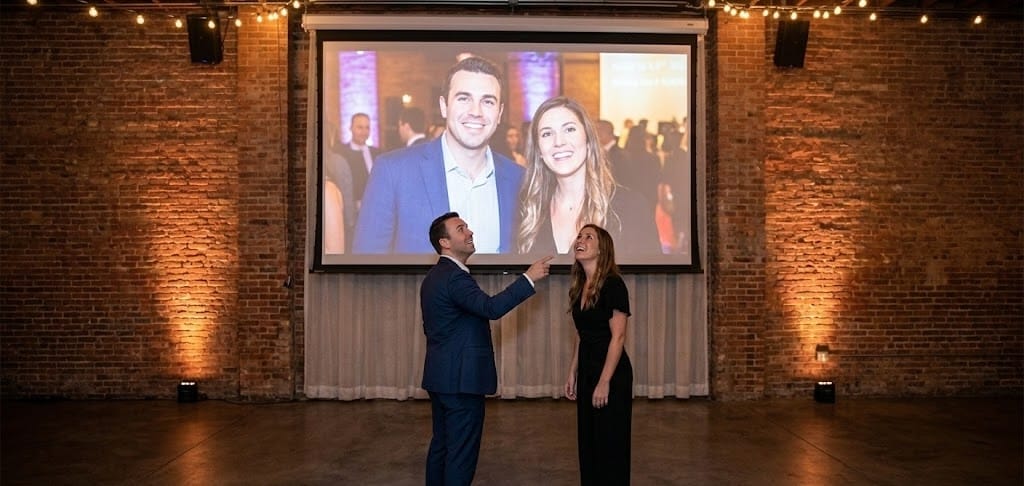
- Watch memories appear in real-time on your screen
No app. No complicated setup. No tech person required. Just a laptop, a display, and guests texting their perspectives.